
Highlights
What you marked,
all in one place.
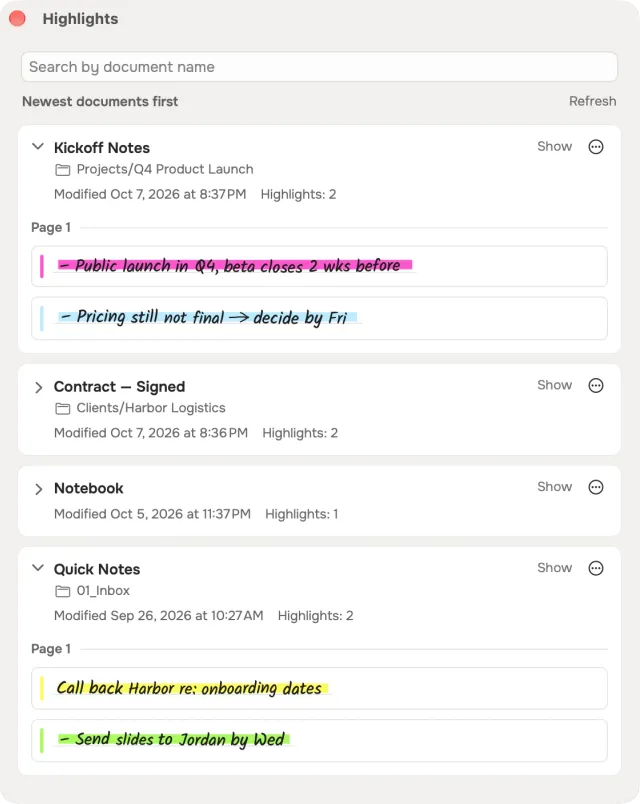
Everything you mark with the highlighter on the tablet — in notebooks and in PDFs — is gathered in one window on your Mac, document by document, with its words and a picture of each passage.
From there you can copy or share a passage, cut passages out as images with AI Studio, send them to Obsidian or Readwise, or erase the highlight on the tablet.
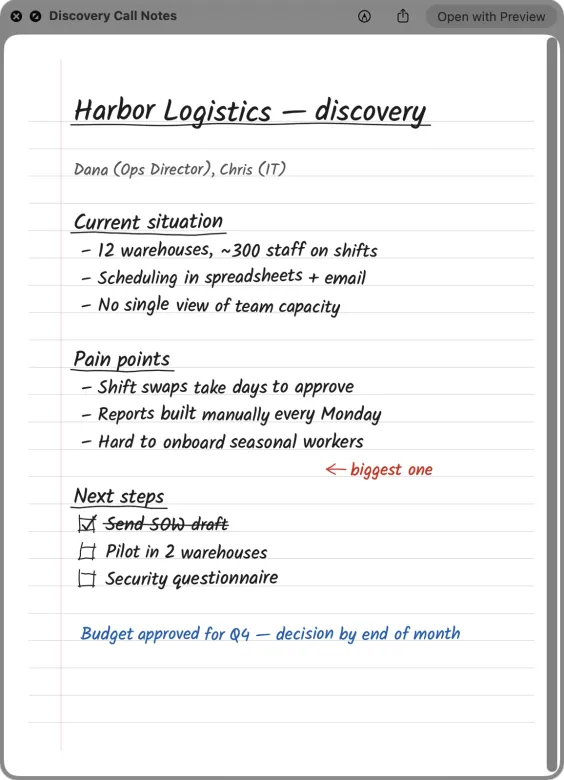
six colors, as the tablet has them
The window
Three views on what you marked
pictures first, actions on hover
Library, document or search
Switch between every highlight across your library, one document at a time, or a search that narrows the list as you type.
Pictures first
Each passage shows as a picture by default, the way it looks on the page; its actions — copy, share, recognize, hide — appear when you point at it.
Hide what you don’t need
Hide one highlight or a whole document from the list. Nothing changes on the tablet, and a hidden highlight starts no rule.
From the menu bar
The Highlights card in the Slate Drive panel opens the window.
Save to a file
Every highlight, or just this document
from the window itself
Three forms
A PDF with the passage text, a PDF with the passages as pictures, or a reMarkable notebook sent straight back to your tablet.
One file per page
Passages from the same page stay together, separated by a short divider; the text comes from the document, and only the highlighted part is included.
Choose the destination
Save the file on this Mac, or send the notebook into any folder on the tablet — a new one included.
Removing
Erase a highlight on the tablet
the page as it was stays on the Mac
One passage or all of them
Remove one highlight, or every highlight of a document — marks on layers hidden on the tablet included. The marker is erased in the document itself, on the tablet and on every device.
Always asked first
The app asks before removing and names the document.
The original is kept
Before a page changes, it’s saved on this Mac as it was. There’s no undo on the tablet.
Checked against the version
The erase runs on the version the passage was read from. If the document changed on the tablet in between, nothing is touched and the list is read again.
Highlights as Images
Each passage cut out as a picture
no model, no cost
A built-in action
Highlights as Images cuts every passage out of its page, the way the window shows it. It reads nothing and calls no model, so it costs nothing.
Four ways to write it
A PDF, a Word file, PNG images — one file a passage — or Markdown with the pictures beside it.
Into your notes
Markdown goes to a folder on your Mac or straight into Obsidian or Logseq, the pictures as attachments. Integrations →
Or as words
The Highlights action collects the marked words instead, and Highlights to Markdown makes a note of them; Readwise takes marked passages too.
Automation
New highlights can start a rule
any color, or only yours
Highlighted anew
A rule can start when a document gets new highlights — in any of the six colors (yellow, blue, pink, orange, green, gray) or only the ones you pick.
Only what’s new
The run gets the whole document; an action with a model is told where the new highlights are, and Highlights as Images saves only those. Highlights found by the first scan of your library don’t start a rule.
On all your Macs, and in Claude
Highlight scans and the ones you hid travel through your iCloud. Over MCP, Claude can list a document’s highlights; erasing them takes a token permission of its own, which a new token gets only if you tick it. MCP →
Conditions and budget
Conditions, steps and the budget work as in any rule. AI Studio →
FAQ
Questions about highlights
- Does it cost anything?
- The window and Highlights as Images don’t: no model reads anything. Reading a passage’s words uses your recognition engine — free on this Mac, on your own key in the cloud.